Controls and interface
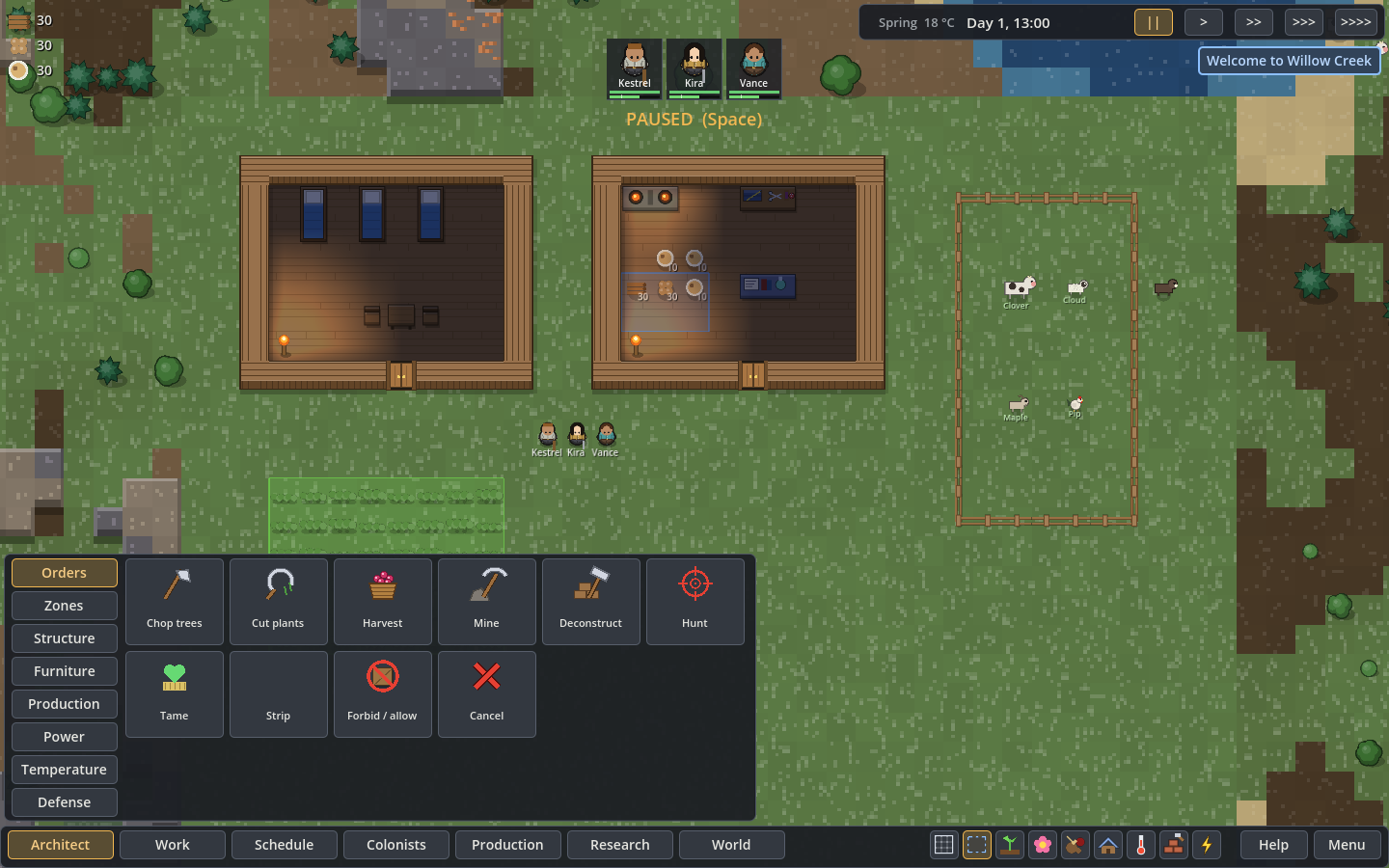
Mouse and keyboard
Section titled “Mouse and keyboard”| Control | Action |
|---|---|
| WASD / arrow keys, or middle-button drag | Move the camera |
| Mouse wheel | Zoom |
| Left click / drag | Select a thing / select several colonists |
| Shift + selection | Add to the selection |
| Double click | Select visible things of the same kind |
| Right click | Prioritize with an undrafted colonist; move or attack with drafted colonists; cancel a tool |
| Space | Pause or resume |
| 1 / 2 / 3 / 4 | Set 1× / 2× / 3× / 6× speed |
| Q / E, or R while placing | Rotate supported buildings |
| R with colonists selected | Draft or undraft |
| F | Focus the camera on the selection |
| Delete | Cancel selected blueprints or deconstruct selected buildings |
| Escape | Cancel tool, close panel, clear selection, then open the pause menu |
| H | Open in-game help |
| F5 / F9 | Quicksave / quickload |
| F11 | Toggle fullscreen |
Keys follow their physical US-keyboard positions: on AZERTY, WASD movement is ZQSD. Clicking an already selected cell cycles through the things on it, so you can reach an item beneath a building or select the zone beneath it.
Panels and map views
Section titled “Panels and map views”B opens Architect, Z Zones, P Work, K Schedule, C Colonists, O Production and T Research. N opens World on Wildlife; Y opens Factions. The Animals tab lists your livestock.
Use the lower-right view buttons to inspect the grid, zones, fertility, beauty, cleanliness, roofs, temperature and construction. G toggles the grid and L power networks. Hover a cell to read its terrain and conditions at the bottom of the screen. Selected colonists show their route; building ghosts show the planned footprint and turn red where placement is invalid.
Touchscreens
Section titled “Touchscreens”- Drag one finger to move the map while selecting. Pinch with two fingers to zoom and move, including while a tool is active.
- Tap to select; double tap to select visible things of that kind. Hold still for the right-click context menu.
- Use Select on the bottom bar for multiple selection. Taps add or remove things; dragging draws a selection box.
- Choose a building, drag to mark its placement, then confirm with Place. Use the rotation buttons as needed. Done leaves the tool and reopens Architect.
- Zones, orders and roof areas also use drag, then Place.
- Tapping a work priority cycles 3 → 2 → 1 → off → 4.
- Scroll long panels by dragging. Bills and trading offer buttons such as -5 / +5 and None / All.
The Full screen button can hide browser bars where supported. A mobile browser may require a tap before entering fullscreen.
Debug controls
Section titled “Debug controls”F1 opens the debug overlay, which includes event and weather controls. These can change the colony immediately; ordinary play does not require them.